Clean Install vs Upgrade: Which Windows Method Fits
An in-place upgrade keeps files, apps and most settings and installs the new Windows over the old one. A clean install erases the system drive and starts from a fresh copy of Windows. Upgrade when the PC runs well and the apps matter. Clean install when the system is damaged, infected, rebuilt with new hardware, or changing hands. Digiwrld handles both routes as an OS install / reset service for $59, so the backup, the install and the setup are covered in one booking.
TL;DR
- Upgrade: keeps personal files, compatible apps, drivers and most settings. It is the faster route on a healthy PC, and it also carries over old clutter.
- Clean install: wipes the system drive, including apps, settings and manufacturer add-ons. It gives a fresh registry and fresh drivers, and everything must be backed up first.
- Pick a clean install after malware, corruption, a motherboard swap, a new SSD, or when the PC gets a new owner.
- Pick an upgrade when the PC boots normally and the goal is to keep apps and files.
- Digiwrld: OS install / reset is $59, data migration up to 500GB is $89, and virus and malware removal is $79.
Table of Contents
- What each method actually does
- Side-by-side comparison
- When an upgrade is the right call
- When a clean install is the right call
- Quick decision guide
- What to back up before either method
- How long each method takes
- Where Digiwrld fits
- Our view
- FAQ
- Sources
What each method actually does
The two methods differ in one thing: what happens to the existing Windows installation.
An in-place upgrade runs from inside Windows. According to Microsoft Support, it is started by launching setup.exe from installation media while signed in, and the user chooses what to keep. Windows is reinstalled without a full wipe. Microsoft’s deployment documentation describes it as preserving data, settings, applications and drivers, as needing the least effort, and as able to roll back automatically to the previous OS. Recovery data is kept in a Windows.old folder.
A clean install is run by booting from installation media into the Windows Recovery Environment. The same Microsoft page says it removes personal files, apps, manufacturer customizations and all changes made in Settings. The system drive is reformatted, and nothing of the old OS, apps or data remains, as TechTarget’s migration guide puts it.
Two terms come up in both cases:
- Installation media is a bootable USB drive or disc that holds the Windows setup files.
- Windows.old is a folder where Setup parks the previous Windows files. Microsoft’s upgrade and migration page notes that after a custom (clean) installation, applications and settings are not maintained, while personal files and the old Windows files are moved into Windows.old and can be reached once Setup finishes. That folder is a safety net, not a backup plan.
Side-by-side comparison
| Factor | In-place upgrade | Clean install |
|---|---|---|
| Personal files | Kept (library folders and usually other local locations) | Erased from the system drive |
| Installed apps | Compatible apps carry over | All removed, reinstall needed |
| Drivers | Compatible drivers kept, outdated ones may be removed or replaced | Fresh drivers installed |
| Settings | Most retained, some may reset | Back to defaults |
| Manufacturer add-ons | Stay | Removed |
| Old registry changes and leftovers | Carried forward | Gone |
| Effort | Lowest | Higher: backup, media, reinstalling |
| Risk of data loss | Low, with rollback available | Higher if the backup is incomplete |
The file, app, driver and settings rows follow TechTarget’s migration guide. The effort and risk rows follow TechTarget’s pros and cons comparison and the CompTIA A+ study guide from ITU Online.
When an upgrade is the right call
An upgrade suits a PC that boots normally, runs stable, and holds software that would take time to rebuild. TechTarget’s Ed Tittel lists three main benefits: convenience, simplicity, and preservation of compatible apps, files and settings. He reports that the vast majority of Windows 10 in-place upgrades take under an hour, depending on download speed and hardware.
That suits several common situations:
- A work laptop with licensed software, saved credentials, mapped drives and plugins. The CompTIA A+ guide notes that these can take hours to reconstruct.
- A gaming PC with large game libraries and launcher settings already in place.
- A healthy PC moving to a newer Windows version where the hardware meets the requirements.
Limits to check before upgrading
Some changes cannot be done in place. Microsoft says an in-place upgrade cannot switch 32-bit Windows 10 to 64-bit Windows, and cannot upgrade a boot-from-VHD installation. TechTarget adds that moves between x86/x64 and ARM are blocked, and that the edition generally has to match: Windows 10 Home does not go straight to Windows 11 Pro, but a route through Windows 10 Pro with proper license keys exists.
An upgrade also inherits whatever the old install contained. TechTarget’s comparison notes that old settings, registry changes and unused files come along. On a system with a long history, that is the main reason to move to a clean install.
When a clean install is the right call
A clean install gives a known starting point. Computerworld’s Ed Tittel argues that on Windows 11 24H2 and 25H2 it avoids OEM bloatware, rebuilds the registry and default services, and replaces legacy drivers with fresh hardware-optimized ones. He ties that to better boot time and stability, and a leaner startup profile with lower RAM and CPU load. His view is that upgrades through Windows Update can carry forward quirks and clutter that degrade new features.
The CompTIA A+ guide lists the situations where a clean install fits best:
- Windows is damaged, corrupted or compromised by malware.
- A machine is rebuilt for a new user or department.
- Major hardware changes, such as a new motherboard or a move to a new SSD.
TechTarget’s glossary entry adds two more: important files are corrupted so an upgrade cannot proceed, or troubleshooting, including the OS reset feature, has failed. A PC that is being sold or given away also belongs here, since a clean install leaves nothing of the previous owner’s data on the system drive.
Gaming PCs and new builds
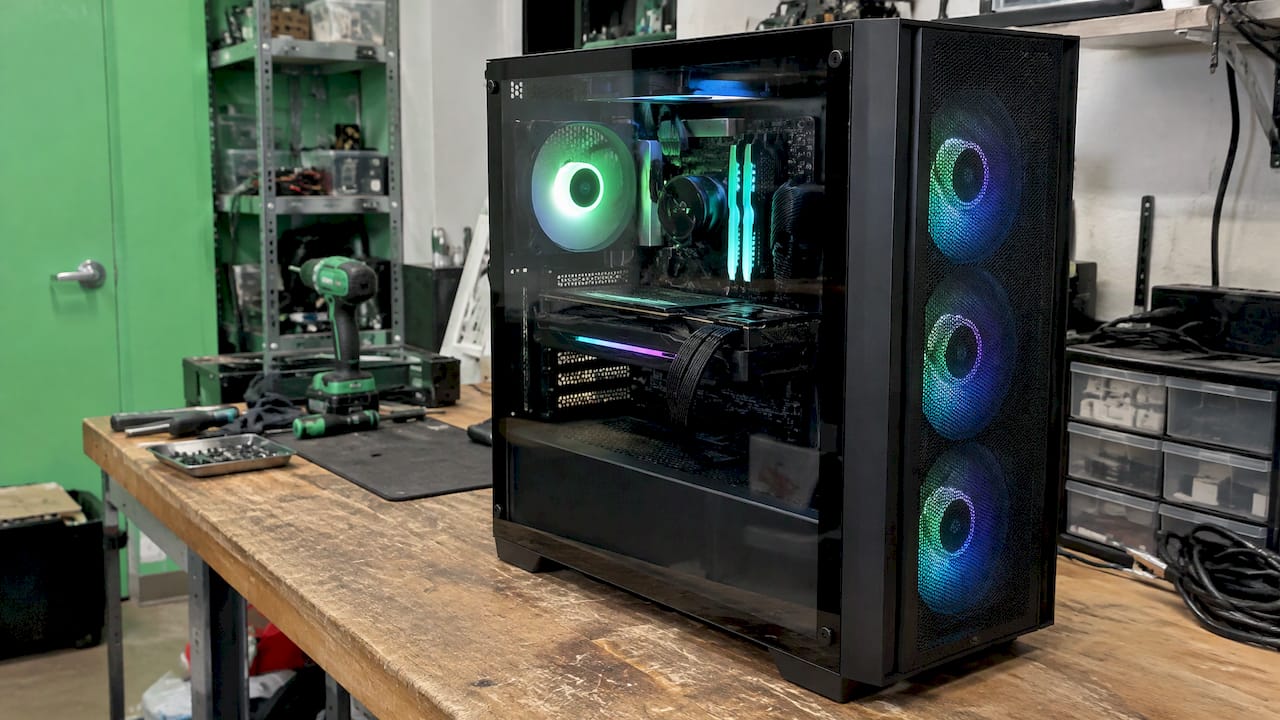
A new SSD or a new platform is the classic trigger. Windows Central’s clean installation walkthrough points out that custom builds do not have a branded support page to pull drivers from, so Ethernet, Wi-Fi and graphics drivers are worth downloading beforehand. Digiwrld builds custom gaming PCs from $800 on the custom PC build page, and an RTX card such as the RTX 5070 PNY OC 12GB goes into a system that starts from a fresh Windows install.
Quick decision guide
| Situation | Better fit |
|---|---|
| PC boots normally, apps and files must stay | Upgrade |
| Malware infection or corrupted system files | Clean install |
| New SSD or replaced motherboard | Clean install |
| Moving from 32-bit to 64-bit Windows | Clean install (an in-place upgrade cannot switch architecture) |
| Selling or giving the PC to someone else | Clean install |
| Business PC with many plugins and cached credentials, running fine | Upgrade |
| Heavy manufacturer bloatware and slow startup | Clean install |
The ITU Online guide reduces this to one rule: preserve the environment when the system is healthy, hardware is compatible and the apps are familiar, and rebuild when reliability matters more, as with damaged, infected or repurposed machines.
What to back up before either method
Back up before any install, an upgrade included, because Microsoft’s recovery guidance advises saving important files and turning on Windows Backup (Settings > Accounts > Windows Backup) before any recovery process. It also states that if BitLocker is enabled, the BitLocker recovery key is needed to reach most recovery options from Windows RE. BitLocker is Windows drive encryption, and the key should be stored somewhere other than the PC itself.
A MakeUseOf pre-install checklist covers the items that people miss:
- Documents, Pictures, Videos, Desktop and Downloads folders.
- Browser data and app-specific data, including the hidden AppData folder and game saves.
- The BitLocker recovery key, saved separately.
- Product keys and a list of installed apps.
- Essential network and graphics drivers.
- Installation media, plus working internet and two-factor authentication access.
Windows Central’s guide adds confirming that Windows is activated so it can reactivate, and syncing profile folders to OneDrive or making a system backup. Computerworld’s Ed Tittel recommends a complete image backup before a clean install, so the previous state can be restored if the process goes wrong.
For a business PC the list grows. TechTarget’s Brien Posey advises an app inventory, identifying incompatible applications, and a hardware check against Windows 11 requirements before choosing a path.
How long each method takes
Time depends on the drive, the download speed and the apps to restore. The upgrade figure from TechTarget is under an hour for most Windows 10 upgrades. For a clean install, the Windows part is only the start: updates, drivers, app reinstalls and file restores follow, and that setup phase is where most of the hours go. Booking the work out removes that block of time from the owner’s day.
Where Digiwrld fits
The choice between the two methods is easier when the work is priced and scoped up front. Digiwrld’s published prices for the related services:
| Service | Price |
|---|---|
| OS install / reset | $59 |
| Data migration (up to 500GB) | $89 |
| Virus & malware removal | $79 |
| Full tune-up + thermal repaste | $99 |
| Mail-in service | $10 |
The OS install / reset service covers a fresh Windows install. Pair it with data migration (up to 500GB) so personal files move across, and with virus and malware removal when infection is the reason for the rebuild. A PC that is not local can be sent in through the mail-in service for $10, and shipping is $12 per item. Prices are as published on the site and can change, so check the page when booking.

Local customers in Corpus Christi, TX can use the house-call repairs page. Anyone choosing between a reset and a full reinstall can read the Windows reset vs reinstall guide, which covers the middle option between the two methods here.
When the old machine is the problem, a new one is the other route. Digiwrld lists brand new computers with live in-stock inventory, including the MacBook Pro M4 and the Mac Mini M4, and the Mac running slow guide covers the macOS side of slow-system fixes.
Our view
Most people ask this question when the PC is already misbehaving, and that is the useful signal. A healthy machine with software that matters is an upgrade candidate. A machine with a problem that has a history, whether a bad update, malware or a hardware swap, is a clean install candidate.
The part that decides how the day goes is the preparation. The install itself is short. Backups, license keys, drivers and the reinstall list are what take the time and carry the risk. That is why we price the install, the data migration and the malware removal as separate, published services: $59, $89 and $79. The customer picks the combination that matches the problem.
For a gaming PC or a custom build, we recommend starting from a fresh install, with drivers set up for the hardware actually in the case. For a business PC that is running fine, an upgrade with a verified backup is a sound plan. Either way, the data gets backed up first.
Hayden
FAQ
Does upgrading to Windows 11 improve performance?
The new version brings its own system changes, but an in-place upgrade carries over old settings, registry changes and unused files, according to TechTarget. A clean install of Windows 11 can give a leaner startup profile with lower RAM and CPU load, per Computerworld. Hardware, storage type and installed software also shape the result.
Is a clean install worth it?
It is worth it when Windows is damaged or infected, when hardware changed in a major way, when the PC changes users, or when troubleshooting has not fixed the problem. For a healthy PC with apps that matter, an upgrade keeps the existing environment. Digiwrld’s OS install / reset is $59 for the clean route.
Does a clean install delete everything?
It formats the system drive, so personal files, apps and settings on that drive are removed, as TechTarget’s glossary explains. Files on other drives are separate, but a full backup should exist before starting. Digiwrld’s data migration service handles up to 500GB for $89.
Can an upgrade be undone?
Microsoft’s deployment documentation states that an in-place upgrade can roll back automatically to the previous OS, with recovery data stored in the Windows.old folder. A backup should still be made first.
Do both methods need installation media?
A clean install needs bootable installation media, as the TechTarget comparison notes. Microsoft’s instructions use installation media for the in-place route too, launched from inside Windows with setup.exe.
Sources
- Reinstall Windows with the installation media | Microsoft Support
- Windows deployment scenarios | Microsoft Learn
- Windows Upgrade and Migration Considerations | Microsoft Learn
- Recovery options in Windows | Microsoft Support
- How to migrate applications to Windows 11 | TechTarget
- Pros and cons of a Windows 10 clean install vs. upgrade | TechTarget
- clean install | TechTarget
- 7 reasons to clean install (not upgrade) Windows 11 | Computerworld
- Windows 11 Install Method guide | ITU Online
- Run Through This Checklist Before You Clean Install Windows 11 | MakeUseOf
- Complete Windows 11 clean installation process | Windows Central